App Risks
November 11, 2026

What is YouTube Shorts?

‍

This is YouTube's short-form video that allows users to create, watch, and share fast-paced TikTok-styled videos, all no longer than 60 seconds. You can access Shorts in the left menu on a desktop, or in the bottom options in the YouTube app.

‍

‍

Inappropriate Content on YouTube Shorts:

‍

YouTube Screenshots of inappropriate, scary, and violent YouTube Shorts.

‍

Here are some examples of the weird videos that can pop up. Creepy, inappropriate, or violent videos are some of the most common problems on YouTube.

‍

  • YouTube tip: scroll through and watch about 10-15 shorts on your kid’s account. If you see anything weird, tap the three dots in the corner and ask YouTube to not recommend that channel again.
  • YouTube tip: stay calm if you notice something unusual in the Shorts (“Don’t freak out!”). Remember – weird videos just pop up all the time even if your kid isn’t watching weird Shorts. So, if you see something unusual, don’t assume the worst.

‍

Thankfully, you can make them cleaner and even set a time limit for how long your child can view YouTube Shorts. These controls are available by using a supervised account (see below).

‍

YouTube Terminology:

‍

YouTube uses a lot of different, confusing terms to describe its filters, features, and settings. We want to clarify.

‍

Restricted Mode:

‍

  • Refers to the most common content filter on YouTube.
  • A fairly effective filter that hides the most mature content.
  • Disables the Comment Section and Incognito Mode (which is great).
  • It’s the default filter setting when YouTube is used without being logged in (which is also good).

‍

Supervised Account:

‍

  • Refers to a Google account set up for a child.
  • There are three different filter levels for supervised accounts: Explore (age 9+), Explore More (13+), and Most of YouTube.

‍

Family Link:

‍

  • The brand name for all of Google’s parental controls. The logo is a kite.
  • Offers advanced settings for you to manage your child’s Google account.
  • Access to settings that prevent your child from making changes to their account.

‍

Using these together helps make YouTube much safer for your child. But it gets confusing! So, we tested all of these settings to help clarify how all of this works on the practical level.

‍

How Do YouTube’s Settings Work?

‍

We did some testing on YouTube by using different combinations of settings to learn more about how Supervised Accounts and Restricted Mode impact content that a kid could look for on YouTube.

‍

Here’s our YouTube Safety Scale that displays how Supervised Accounts and Restricted Mode work, and what your kid might be able to find:

‍

Protect Young Eyes YouTube Safety Scale. Our findings after searching sex on YouTube with a Parent Account, Supervised Account, and in Restricted Mode.

‍

To Summarize:

‍

  • Using a Supervised Account set to the Explore content level (9+) provided the safest experience on YouTube.
  • Using a Parent Account or any adult’s account without Restricted Mode provided the least safe experience on YouTube.

‍

YouTube Shorts on the Adolescent Brain:

‍

According to a 2025 Psychological Bulletin meta-analysis (containing 71 studies covering 98,299 people), found that heavier short-form video use was linked to weaker attention and impulse control. It was also linked to stress, anxiety, depression, poorer sleep, and loneliness.

‍

Short form media across the board is often linked to shorter attention spans, and if used before going to bed, it can often interupt quality of sleep.

‍

With the controls listed below, you can manage how much time is allowed for YouTube Shorts.

‍

How To Control YouTube Shorts:

‍

YouTube recently rolled out specific parental controls just for Shorts. These only work if your child is using a supervised Google account managed through Google Family Link.

‍

Here's how:

  1. Open Google Family Link
  2. Tap your child’s profile
  3. Select Controls
  4. Select Time management
  5. Under Daily limits, select Shorts feed limit

‍

You can set the time limit from 0 minutes to 2 hours.

‍

Tech advocates and parents have long wanted the ability to remove access to Shorts completely. Now we can!

‍

Problems with YouTube Controls:

‍

These controls should eliminate most of the problems you would face on YouTube. This works across all internet browsers and both the YouTube and YouTube Kids apps, as long as your child is signed into their Gmail account with these settings enabled. However, even Google points out that your kid might still see content you wouldn’t want them to.

‍

  • Problem #1 – they can always sign out – whether in Safari or the YouTube app, create a fake Gmail account as a fake “adult,” and log in. But please be involved enough to know if this is happening.
  • Problem #2 – if using the YouTube app, they could just stay signed out, and although Restricted Mode would be in use, your child could use Incognito watching on YouTube and hide watch history.
  • For a parent who has struggled with a child who misuses the YouTube app on Apple devices (iPads and iPhones), then sticks with locking down the App Store, removing the YouTube app, and “forcing” them to watch YouTube through the Safari browser with “Limit Adult Websites” checked in Screen Time (here’s where you find it: Settings -> Screen Time -> Content & Privacy Restrictions -> Content Restrictions -> Web Content -> Limit Adult Websites. Doing this locks in Safari search history. You can’t see individual videos they watched, but just saying, “I can see all of your history on Safari” is often enough to deter poor choices.

‍

Bottom Line - Is YouTube Safe Shorts for Kids?

‍

The #1 best way to make YouTube Shorts a little safer for kids is to use it while logged in with a Supervised Account. This allows you to use multiple content levels based on age, remove comments, and lock Restricted Mode (except for the app).

‍

The #1 problem with YouTube is that on smart devices (iPhones, iPads, tablets), you can’t lock a Supervised Account into the YouTube account. This means a sneaky kid could log out of what mom set up and go with an account they created. This is a situation where the relational aspect of being a parent comes into play, offsetting a bit of the failure on the technical side. Persistent, curious questions.

‍

To learn more about all of YouTube, please visit our comprehensive YouTube Guide.

‍

A couple of the best technical offsets for this kind of behavior include:

‍

  • Using paid, third-party software like Covenant Eyes or Canopy, which can lock in Restricted Mode across the device. No matter what Gmail account is used.
  • Get a router with parental controls that allow you to force your home network into Restricted Mode for everything on your WiFi!

‍

Above all, remind your kids that you love and trust them. And when they see something weird, uncomfortable, scary, or inappropriate – remind them it’s not their fault, then practice “put it down” and “tell someone.”

What if I have more questions? How can I stay up to date?

‍
Two actions you can take!

‍

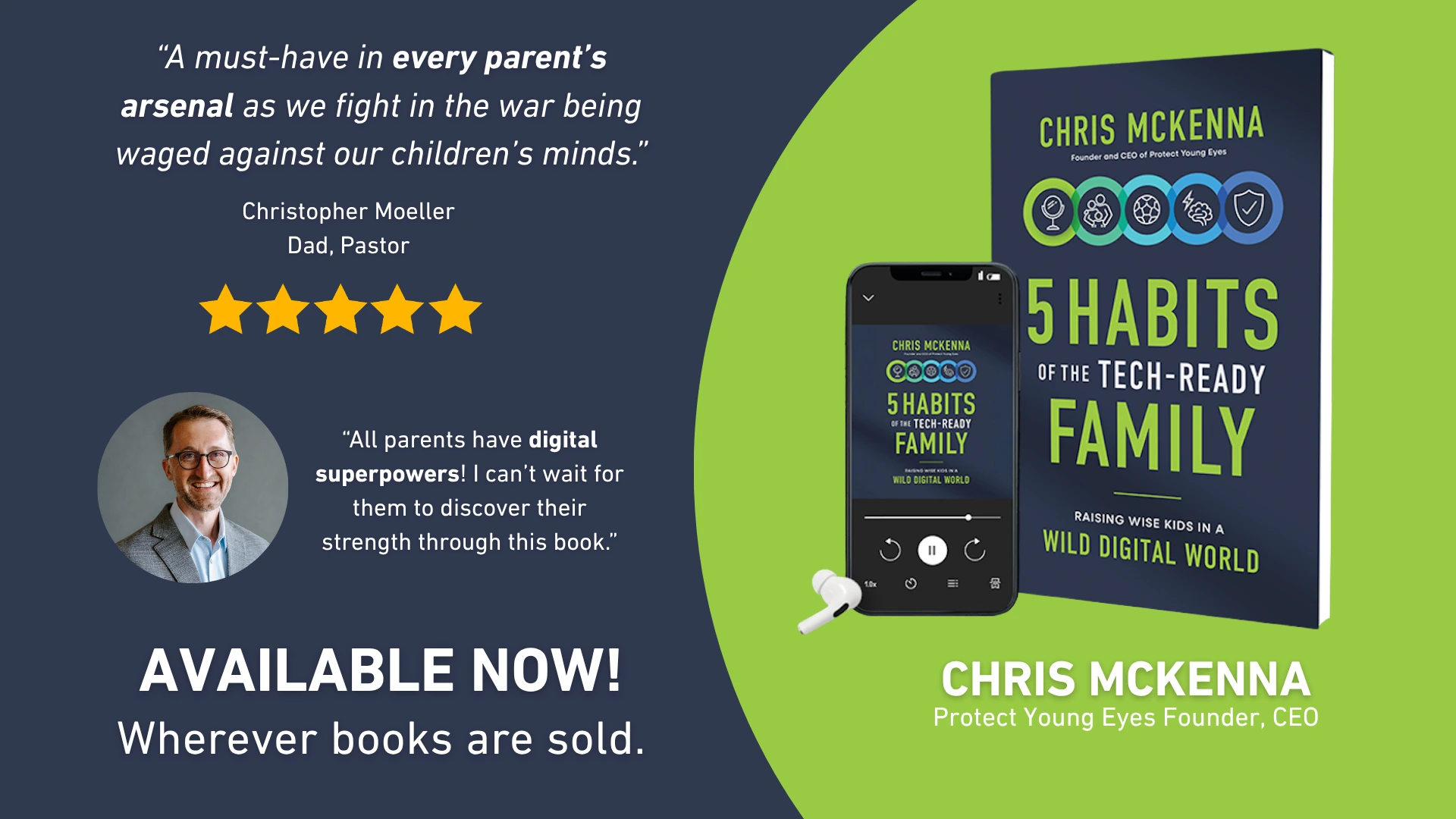
  1. If you have more questions: Order Chris's book (or audiobook)! Supported by science, built on deep experience, biblical truth, and proven by thousands of success stories, 5 Habits of the Tech-Ready Family will help readers raise wise kids in a wild digital world.
  2. Stay up to date: Subscribe to our tech trends newsletter, the PYE Download. Monthly, we’ll share what families need to know, what the PYE team is up to, and a message from Chris.

‍

A letter from our CEO

Read about our team’s commitment to provide everyone on our global platform with the technology that can help them move ahead.

Read Chris' letter
Featured in Childhood 2.0

Honored to join Bark and other amazing advocates in this film.

Watch Now
World Economic Forum Presenter

Joined a coalition of global experts to present on social media's harms.

Learn More
Testified before Congress

We shared our research and experience with the US Senate Judiciary Committee.

Learn More