
Start Here
About
Speaking
Book
Join The Table
Parent Course
Resources
English
Order my debut book! - 5 Habits of the Tech-Ready Family 📑


In 2017, the Nintendo Switch took the world by storm. It revolutionized handheld gaming devices and created a series of spinoff models. The Switch 2 was released on June 5, 2025, with new features.

We believe the best way to prevent digital harm on all digital devices is by following our 5 Layers of Protection:
Layer 1: Relationships
Layer 2: WiFi (Router)
Layer 3: The Nintendo Switch Device
Layer 4: Location
Layer 5: App
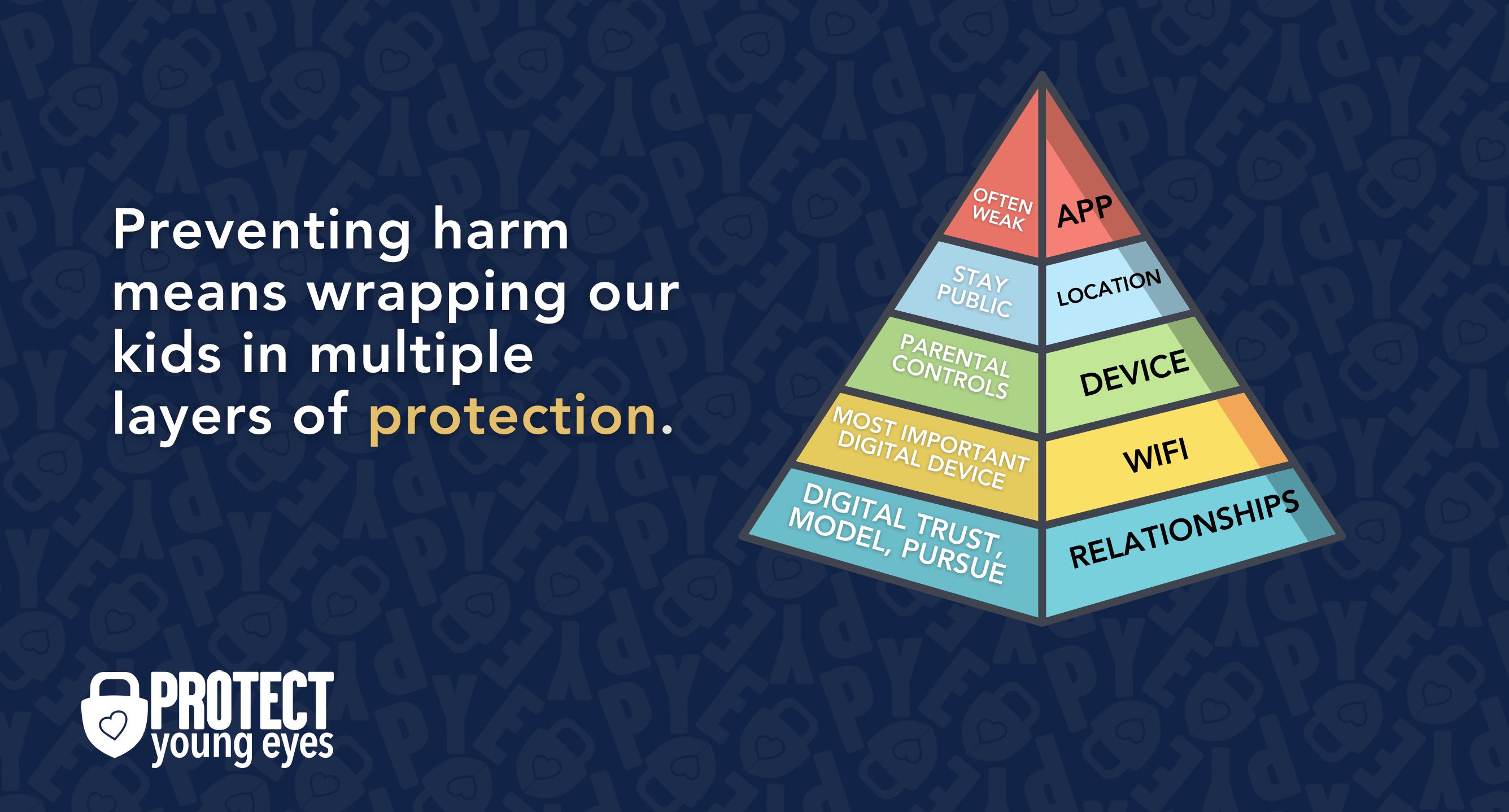
In a digital world that is increasingly hostile toward children, our response must be strong and relevant. That's why we believe in wrapping our kids in multiple layers of protection. One or two are often not enough.
To learn why our relationships with our children are the foundation of protection and how to build digital trust (Layer 1), here are relevant blog posts:
The Router is the most important digital hardware in the house! And, it’s often the most ignored. But, you are responsible for every digital click on your home’s network, so monitoring and controlling its activity is important.
Popular options for parents are:
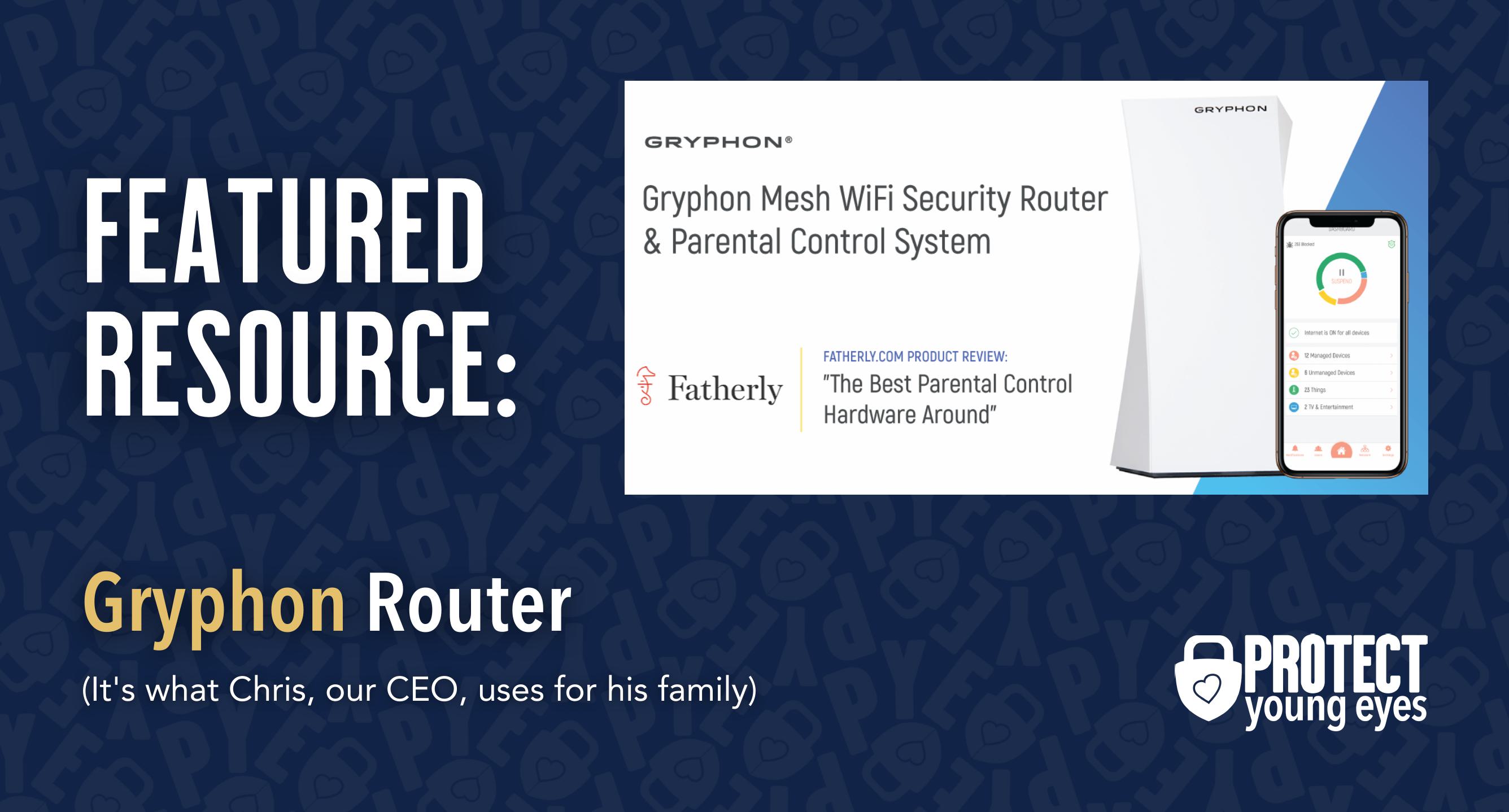
Bonus content – we tested the best routers out there and here’s WHY we picked Gryphon.
Switch enthusiasts have stated that the new console is well worth it. While the Switch 2 isn’t a revolutionary console like the first Switch was, Nintendo capitalized on improving the Switch with a larger screen and Joy-Cons, a sturdier kickstand, more storage, and an additional USB-C port.
The Switch 2 currently costs $499 (the original Switch was $299) and, in some cases, also includes a Mario Kart Bundle. Games for the new Switch will be more expensive (around $80 as of the writing of this review).
The original Switch had a few mature titles, but Switch 2 will have many more. By “mature,” we mean games that include sexual references, violence, drugs, alcohol, gore, and language. For example, the Switch 2 will release a dark fantasy game called “The Duskbloods.” Cyberpunk 2077 is another example, rated M for “Blood and Gore, Intense Violence, Nudity, Strong Language, Strong Sexual Content, and the Use of Drugs and Alcohol.”
It’s for these reasons that setting up parental controls on the Switch 2 is important, as shown below. FYI - games from the first Switch will still work on the Switch 2.
Perhaps the biggest change in the Switch 2 is its built-in Zoom-like video and audio call feature, GameChat, which supports a variety of webcams (see image below).
If your child is younger than 16 on their Nintendo account, then a parent or guardian is required to set up GameChat on the Switch 2. This requires an adult to link their Nintendo Account to a phone number and email, which are then both verified. After that, GameChat will be available for the child. There are always some risks with video chat, but GameChat is far safer than the Wild West of Discord.
Remember, GameChat is optional. You don’t have to enable it for your child, but with proper education, supervision, and curious parental involvement (curiosity is KEY to building Digital Trust), then gaming with known friends can keep kids connected (there’s even some research supporting this).
For Nintendo accounts with birthdays age 16+, GameChat is available.
Opening up the GameChat menu is simple because the Switch 2 includes a new “C” button on the bottom of the Joy-Con and Pro Controllers. Tapping this button pulls up the GameChat window, where you can join calls with up to 12 of your friends. Just like Zoom, you can change your background and video call with your friends right from the Switch 2.
Nintendo continues to be a platform that designs features with kids in mind more than other platforms. For example, if activated, GameChat is ONLY available for those on your friends list. This means random people can’t suddenly try to video or voice call your child (which is great). Friends only! But using GameChat responsibly requires open dialogue about “friends” and being clear about your family’s rules regarding gameplay with others. It’s not difficult for a bad actor to become a Nintendo "friend" by first connecting through another digital channel, and then using gaming to build trust.

In GameChat, users can also screen share and show their screen to everyone on the call. This can be a game, a video, a stream, whatever is on the Switch screen. The Switch doesn’t have a native browser, so the risk of someone showing inappropriate content through screen share is low but not impossible. As with almost all internet connected devices, there are backdoors to search the web.
For example, in the Switch 2 settings, where you connect the device to WiFi (called “Internet Settings”), some have discovered a way to open a hidden internet search. BUT, parents can enable a PIN that prevents access to Internet Settings altogether, which also prevents this hidden search.
GameChat is a new feature that has new risks! If you decide to set up GameChat, or your child is 16 or older, please see step 9 in our 10-step Nintendo Parental Controls Guide below.
Before GameChat, the only way to talk with others through a Switch was to use the Nintendo Switch Online app. It’s not widely used; most gamers prefer using Discord to talk while gaming. However, the addition of GameChat on the Switch 2 might revitalize this app with kids, as you can manage GameChat notifications, so here are some features that parents should be aware of.
For example, kids often like the app because they can display their online status to friends. By clicking on the Settings within the app, users can choose to display their status to All Friends, Best Friends, or No One. Changing their status on the app also changes it on the Switch 2 console. It is also much easier to add friends using the app’s unique ‘Friend Code,” which is a URL or QR code, that is easily shared via text, DM, in Discord, etc. See image below:
-images-2.jpg)
Therefore, if you allow the app, be extra vigilant and curious about “friends” and who your child might be gaming with. You can disable friend requests in the app, but it can’t be locked in, as shown in the next image.
Note, parents can also monitor who their child’s friends are through the Nintendo Switch Parental Controls app, which can be a nice “double layer” of protection (all explained in more detail below). For example, parents might allow an older gamer some freedom to use the Switch app as a way to manage his/her own friends, with parents monitoring those decisions from the Parental Control app.
.jpg)
While this setting here is easy to enable, using the Nintendo Switch Parental Controls app is much more effective for managing a Switch. We highly recommend following our 10 simple steps that are listed below to enable robust parental controls.
Yes! There’s an entire Nintendo Switch Parental Controls app (tap the link to download for Apple or Android).
Then, you can transfer your settings to a Switch 2 using Nintendo’s “system transfer” (click the link for instructions). Please note, you will still need to set up a PIN for the new console and add controls for GameChat since it’s a new feature (see step 9).
Related link: How to reset your parental controls PIN.
You are in the right place! We have identified 10 simple steps that will help you set up parental controls on the Nintendo Switch 2 using the Switch Parental Controls App.
A parent messaged us about a loophole with Nintendo's Parental Controls. They discovered that while a child will need the PIN to delete an account, they do not need one to create an account. Which means, after all your hard work, your child might create a brand new account, circumventing the controls put in place.
Here's how to avoid this from happening with your kids:
For younger kids, we recommend restricting GameChat altogether. For older kids, now that you know its settings, you can choose, but please be aware of the risks. Non-console-related controls we highly recommend include:
While GameChat is the newest and easiest way for friends to connect, there are more ways to communicate with other people on a Switch 2. For example, if your child is playing a multiplayer game, the other players can send your child a friend request. Certain games, such as Fortnite, even have in-game voice and text chat. Setting controls for every game your child is playing on the Switch 2 is a lot of work! To save yourself some time, you might consider restricting online communication altogether. Here’s how:
How do I control communication using the Nintendo Switch Parental Controls app?
How do I control communication using the Switch itself?
We also want to guard the location of the device. Why? Because where kids use technology often dictates how they use their technology. Espescially when it comes to handheld devices like the Switch 2 that are designed to be portable.
Related post: The 5 Worst Places for a Kid to be Online
We have strong opinions about managing where kids use their tech. For example, let’s keep all internet-ready devices out of bedrooms at night, where kids take more risks, and sleep is constantly interrupted.
Just know that the combination of boredom, bedrooms, and darkness (the Toxic Trio) often lead to bad digital choices, whether you’re 14 or 40 years old!
To learn why apps are often the least protected digital spaces and how to set them up safely (Layer 5), here are popular app reviews:
Two actions you can take!
Read about our team’s commitment to provide everyone on our global platform with the technology that can help them move ahead.
Honored to join Bark and other amazing advocates in this film.
Joined a coalition of global experts to present on social media's harms.
We shared our research and experience with the US Senate Judiciary Committee.