Start Here
About
Speaking
Book
Join The Table
Parent Course
Resources
English
Order my debut book! - 5 Habits of the Tech-Ready Family 📑

Content and feature risks in the app.
A platform this large (over 40M games in one!) is just naturally going to struggle to keep all of the junk out, even with thousands of moderators. The Wall Street Journal points to ongoing issues with sexual content which they hope to fix with a game rating system. In the meantime, Roblox is still often in the top charts on Apple's App Store, and has over 1B downloads on the Google Play Store.
There’s so much potential in this platform, which encourages creativity, coding, and fun with other gamers. Regardless of the risks, being involved with your kids as they play Roblox is the best way to keep them safe and build digital trust.
Roblox is available on mobile devices, computers, or gaming consoles. Players can create their own mini-games that often mimic other popular games, or can be completely unique. By using the Roblox Studio, kids are learning how to code using the Lua programming language. These custom-made games are posted online and other users are able to search for them and start playing.
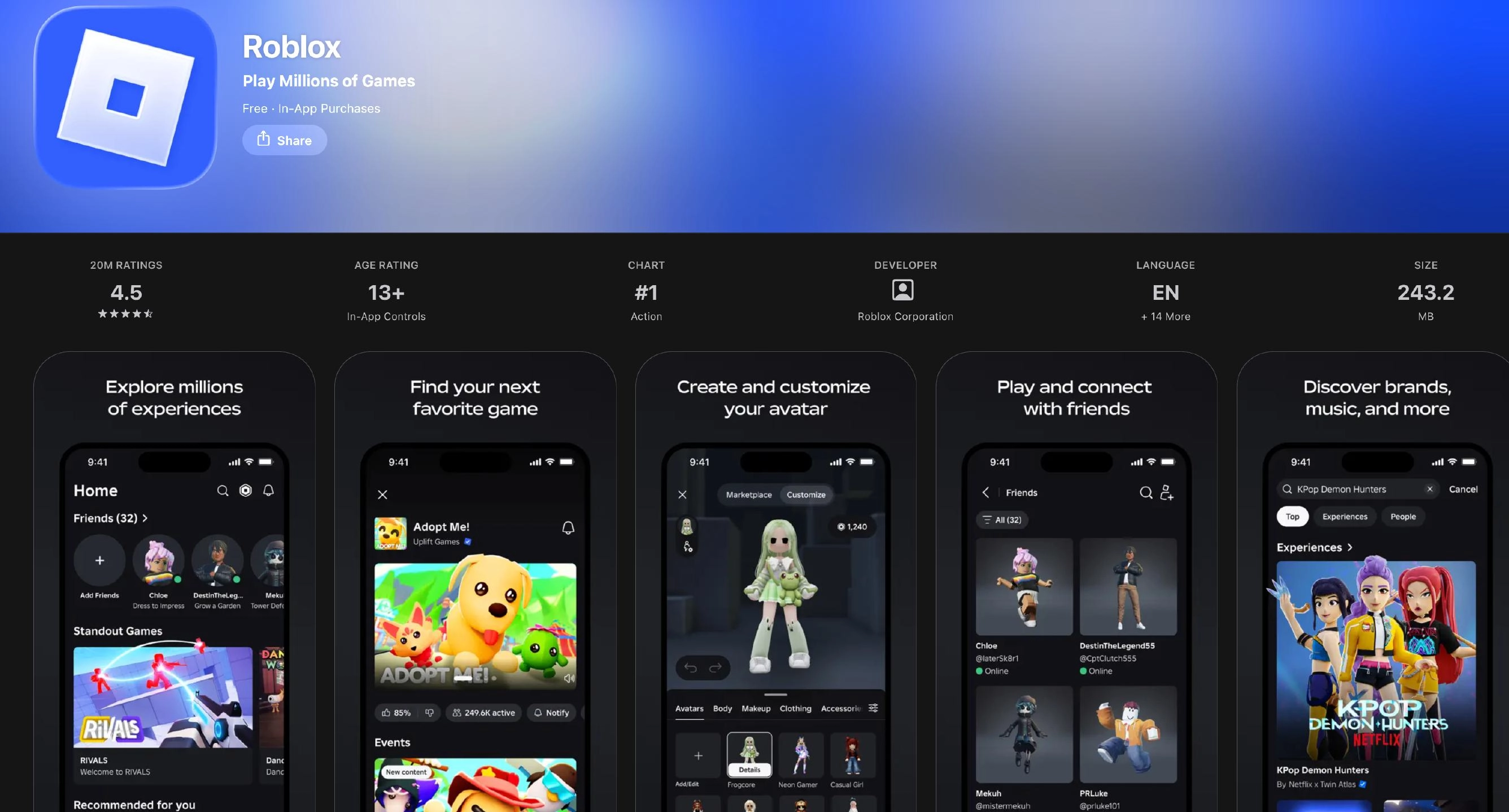
Website: blog.roblox.com (a publicly traded company)
Mature Content: While the app is rated for users between 11 and 13, Roblox recently added the ability to create mature games with a 17+ rating. These specific games and elements can only be accessed after an age verification process, in which the user must provide a Government ID and a live selfie.
That’s right, developer’s with a verified-ID 13+ can insert videos up to 30 seconds long into their custom made games. It costs 2,000 Robux to upload a video right now ($24.99), users must adhere to Roblox’s Community Standards, and they can only upload a maximum of 3 videos per day. Keep an eye on this!
Now available on PlayStation. This means even more people will have access to this games, if your kid is a PlayStation gamer, please pay attention to this game!
Using Hollywood level tech, the voice calls will be tracking facial movement through your camera and will mimic your movements onto your avatar for an “immersive experience.”
As the TODAY News video highlighted, there are ways to be exposed to pornographic and sensitive material, most of which are difficult for moderators to keep up with due to the volume of users. While it’s uncommon for these kinds of games to simply appear, they can be searched for or found through chatting with other players. Additionally, users can code “particles” into their characters, which can be made to emit floating, pornographic pictures and music with explicit content.
Roblox really is no different than any online environment that allows human beings to upload their own stuff. That “stuff” will always include sexualized content.
Therefore, the app’s 12+ rating seems inaccurate. There is a notable absence of any reference to sexualized content in the App Store description of the Roblox App. One could classify some of the avatars as extremely suggestive, if not borderline pornographic. Consider this story from a star Rugby player who pretended to be his 8-year-old on Roblox:
“He said from the outside the game looked fine, but when he went into a room with a pool he was immediately “propositioned”. “They said ‘hi’ so I said ‘hi’ and they asked if I was a boy or girl and my age so I said I was an eight-year-old boy,” he says. “Next, they asked me to follow them to their house, then into the bedroom and asked me to lay down on top of them and then they started with the sexual movements. ‘You look cute’ and ‘You look sexy’. It was sickening reading all the comments pop up. My kids were completely oblivious as to what the words and stuff meant.’”
By using the Lua coding language, kids can build their own mini-games. For a kid aspiring to create games as a career, this might be a good place to practice (with supervision). However, some of these games can be mature and violent. Frontlines is an example of a game on Roblox that utilizes a Call of Duty-styled game, with similar graphics, guns, violence, and a growing adult player base. It’s the first of its kind at this capacity and is available for free through Roblox. This is groundbreaking because Roblox games usually look like LEGO blocks or Minecraft. Frontlines, however, resemble the figures and environments of mature-rated 17+ shooters like Call of Duty. While it’s impressive what users are able to create, just because it’s on Roblox doesn’t mean it’s for kids.
Roblox allows users to experience virtual reality within their platform. This puts users in a more immersive setting that can easily be exploited by other users they interact with, or even by the VR games that are offered. For example, Walmart Land lets kids explore a fun toy-filled warehouse. The danger is that younger users often can’t tell the difference between these immersive games and the advertisements they are surrounded in. Engaging with adult users in a VR setting comes with numerous risks. Sadly, sexual and suggestive hand motions or virtual groping is common in these spaces.
Even with all of the pins and restrictions set, anyone can send anyone a friend request, which happens regularly during gameplay. While some are simply spam-driven, others are real people who might be trying to interact with your child. Roblox recently added a “friend-finding” feature that allows users to upload their contact list from mobile devices. It’s easy to get connected with so many people on this app, below we show how to manage friend requests within the parental controls.
“Wherever the kids are, that’s where the sexual predators are, too.” This is a reality of the digital age. Because this app is predominantly used by kids ages 8-12, this is going to create an automatic attraction to sexual predators.
Here’s an explanation from Common Sense Media:
“OD” stands for “online dater.” These are folks who join social networks, including gaming sites like Roblox, to find romantic partners. Games on Roblox can even be designed expressly for ODers. Roblox doesn’t explicitly forbid ODers, and ODers aren’t necessarily preying on kids. (They may be solely looking for other ODers.) Roblox‘s monitors look out for inappropriate conversations and content. And its community rules prohibit chat that’s sexual in nature.
Beware that kids might be tempted to buy additional gaming features if given the opportunity.
Players can also buy real, physical items from within Roblox: “We’re merging the physical and digital worlds by offering a first-of-its-kind shopping experience inside the game that brings our brand from Roblox to real life,” Nanette Wong, Fenty’s VP of global brand marketing.
Regardless of the app, three actions mitigate the risks we’ve shared. We teach these actions in our parent presentations:
We explain each of them briefly below. If you’ve already set up approvals for downloads and have used the app, please skip to the In-App Controls & Settings.
You can control app stores by requiring permission for apps to be downloaded. This is ensures your child doesn’t have access to an app without your knowledge. Here are the steps (for Apple and Android users):
For Apple Devices:
To require permission to download an app, you’ll need to set up Screen Time and Family Sharing (Apple’s Parental Controls). We explain this process step-by-step in our Complete iOS Guide (click here).
Once Screen Time and Family Sharing are established, here’s how to require permission to download apps on an Apple device:
For Android Devices:
You’ll have to use Family Link (Android’s parental controls) to ensure you retain control over what apps are downloaded. We explain this process step-by-step in our Android Guide (click here).
Once Family Link is established, here’s how to require permission to download apps on an Android device:
This is our tried-and-true method of determining whether a specific app is safe for your specific child.
Before you let your child use it, download the app and use it for 7 days.
Create an account with your child’s age and gender and use it for 7 days. Play through a few levels, review the ads, see if anyone can chat with you, and poke around like a curious child.
After a week, ask yourself, “Do I want my child to experience what I did?” Even if you decide to allow them to download the app, now you have a basis for curious conversations about the app when you check in.
Roblox just recently revamped their entire suite of parental controls. If you are going to allow your child to use Roblox, you'll need to be ridiculously involved in their gameplay, and ensure that their account is set up with the lastest parental controls.
Roblox now has age brackets for child accounts, Roblox Kids (ages 5-9) and Roblox Select (ages 9-15). Children 16+ have full access to most Roblox features. However, these default settings for each account type differ on whether or not the age listed was "Self-Declared" or "Age-Checked." Here's how each of these affect what kids have access to in game:
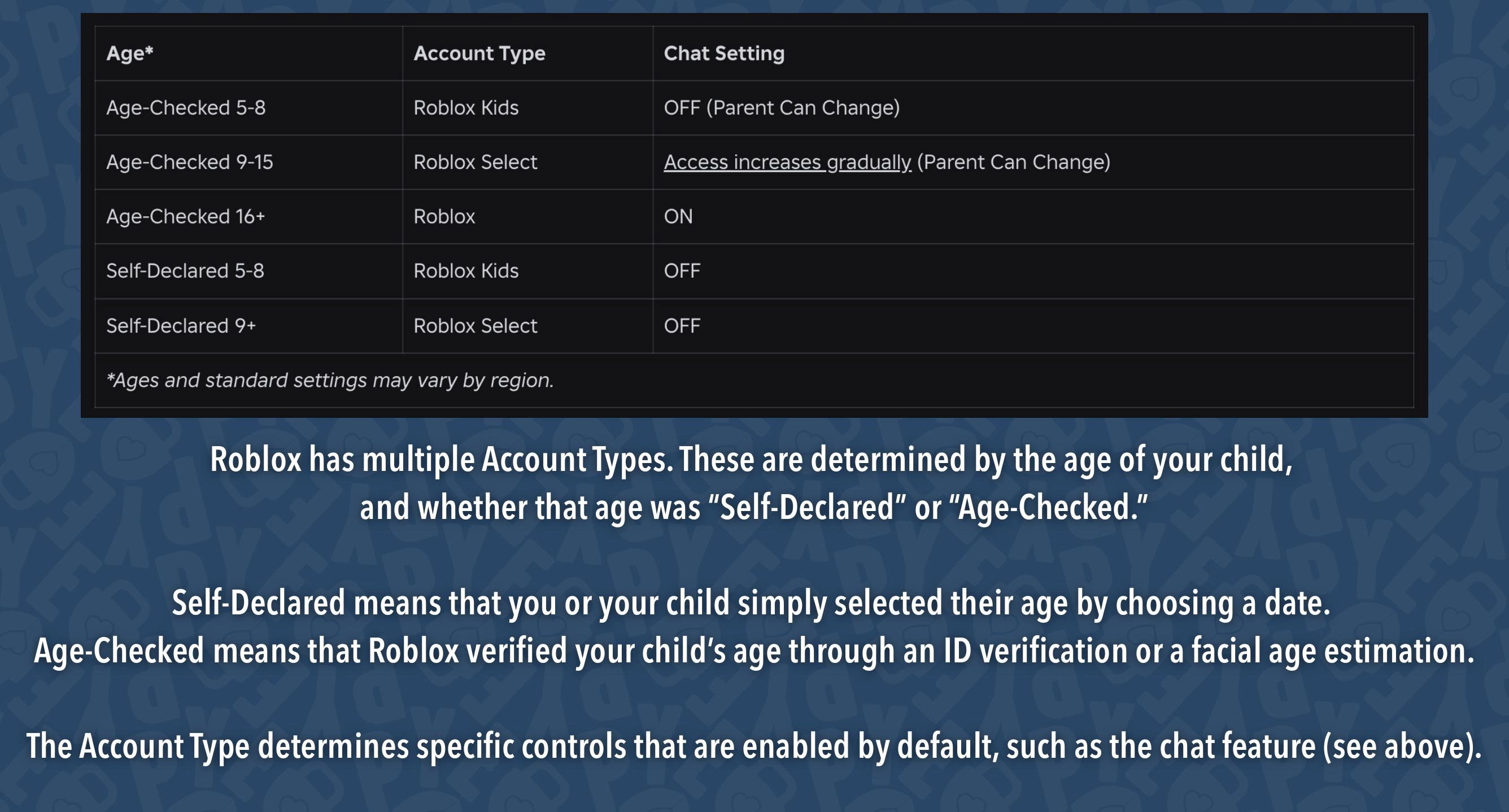
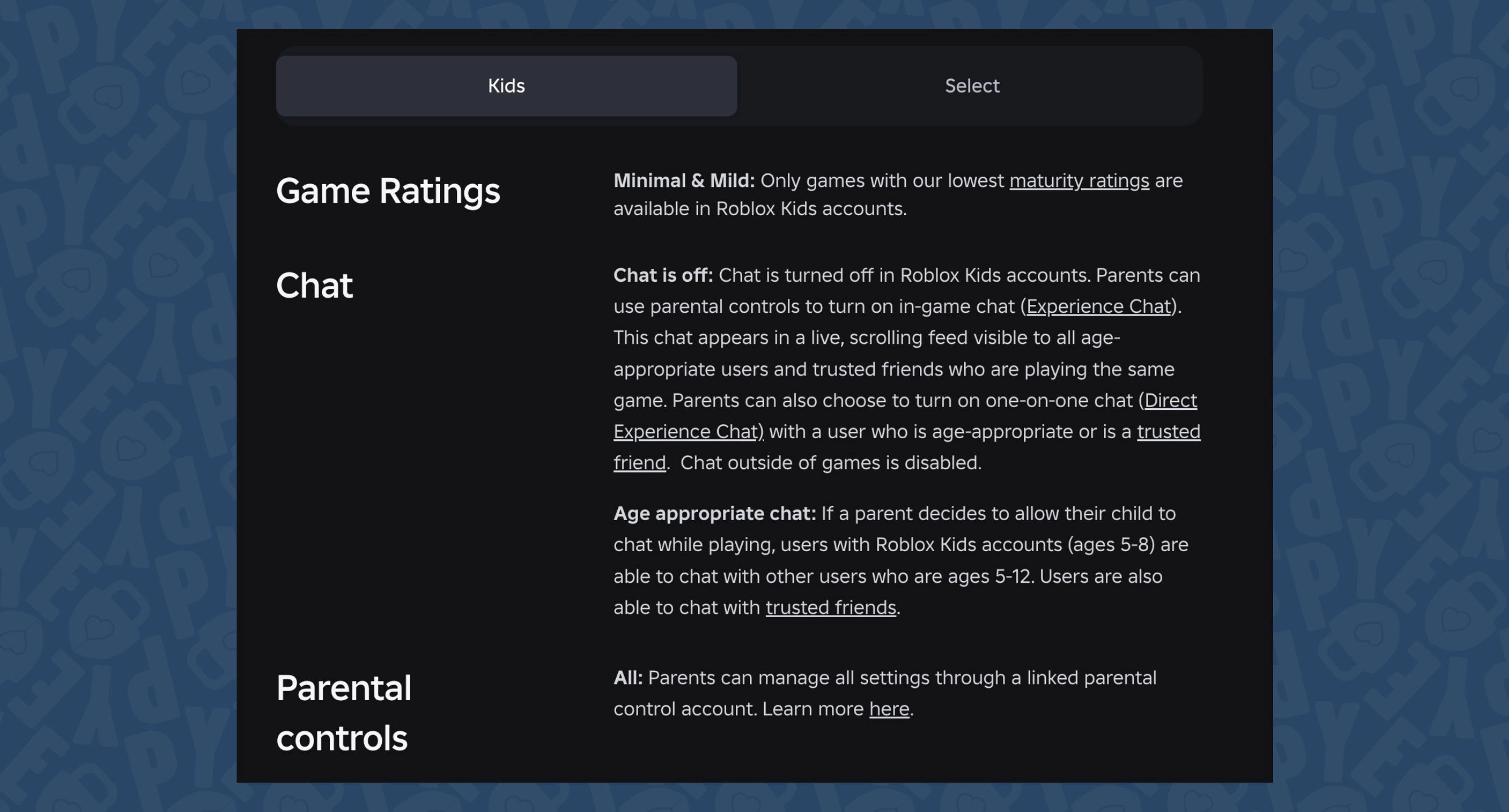
Here are more differences between "Roblox Kids" and "Roblox Select" Account Types:
.webp)
.webp)
Here is a list of specific controls and settings you can enable to make Roblox slightly safer. Even with all of these in place, Roblox is still an extremely risky app full of mature content. Parents, controls are not enough, if you allow your kids to play Roblox, please follow the controls below and be ridiculously involved when they are playing. The following instructions can all be found on the Roblox Parental Controls page: https://about.roblox.com/parental-controls
Communication controls allow you to determine who your child can chat with on Roblox. To access chat features, every user must complete an age check.
This will unlock default age group settings. You can adjust these settings by following the instructions below. Parents can choose to turn chat off for users under 13.
Note: If you decide to allow your child under 9 to chat, they will only be able to communicate with users under 13 years old or trusted friends.
Experience Chat. Experience Chat is the in-game messaging feature that allows users to communicate while playing.
Party Chat is the direct text messaging system for conversations with known friends and trusted friends. Party Chat is only available for users 9+.
Party Voice Chat is the voice messaging system for conversations in active Parties. Party Voice Chat is only available for users 13+.
Screen time limits allow you to restrict the amount of time that your child is permitted to spend on Roblox each day. This is available for all users in Roblox Kids accounts and users ages 9-12 in Roblox Select accounts.
Once they reach their limit, your child will see a message explaining that they have hit their limit, and they will no longer be able to use Roblox for the rest of the day.
You can use the content maturity settings to adjust the default maturity restrictions in Roblox Kids and for users under 13 in Roblox Select accounts. This allows you to customize your child’s experience based on their personal sensitivity levels.
You can block a game from your child’s Roblox Kids or Roblox Select account to prevent them from playing it, regardless of its content maturity rating.
Block an experience to prevent your child from accessing it, regardless of its content maturity level. Blocked experiences will still appear in search results. To block an experience:
Note: If you block a game while your child is playing, the block will only take effect the next time they enter the game.
To allow a game your child has requested:
Blocking another player or illegal content is fairly simple by clicking this article from Roblox.
The sensitive issues content label is applied to experiences that are primarily themed on current sensitive social, political, or religious issues. This descriptor is not intended to take a stance on any of these issues. By default, users under 13 cannot access experiences that are primarily themed on sensitive issues.
A private server is a Roblox experience with limits on who can join. To limit who can join your child’s private servers, and whose servers they can join:
Choose between Connections or No one.
You can view, block, and report your child’s Roblox Connections from within parental controls.
To manage your child’s Connections list:
Blocked users will not be able to chat directly with your child or add them as a Connection again without your permission. Select Report to file a complaint against the user.
If your child is under 13 years old, trusted friends can only be added with your permission.
You will receive a request from us via email or as a pending request in your Parental Controls.
You have 24 hours to select "Approve" from either. If you miss the 24 hour window, your child can resend the request.
We don't think elementary kids are ready for Roblox.
Talk to your children about why this app is unsafe. With younger children, you can use age-appropriate language to help them understand.
Consider our posts about Roblox for helpful talking points:
Even with all of the latest parental controls now available and the newly updated Roblox Kids and Roblox Select Child Accounts, we still don't believe that this app is safe for kids, it's just too risky. If you are going to allow it, please follow the steps above to make Roblox safer, and be ridiculously involved every time they play!
Two actions you can take!


Read about our team’s commitment to provide everyone on our global platform with the technology that can help them move ahead.
Honored to join Bark and other amazing advocates in this film.
Joined a coalition of global experts to present on social media's harms.
We shared our research and experience with the US Senate Judiciary Committee.