Start Here
About
Speaking
Book
Join The Table
Parent Course
Resources
English
Order my debut book! - 5 Habits of the Tech-Ready Family 📑


Content and feature risks in the app.
YouTube Kids is a child-focused version of YouTube designed for younger viewers. It offers videos like cartoons, educational shows, crafts, music, and kid-friendly creators in a simplified, colorful app interface.
Google separates it from the regular YouTube platform so parents can give children access to videos without exposing them to the full adult YouTube environment.
However, there are still risks. Mature content sometimes slips through.
A parent sets up the app using their own Google account and creates a child profile, choosing an age range (Preschool, Younger, or Older).
The app then recommends videos based on that age level and what the child watches. Parents can turn search on or off, approve specific channels or videos, block content they don’t want shown, and set screen-time limits.
Kids can browse categories like Shows, Learning, Music, and Explore, while the app’s filters and parent settings control what appears in their feed.
We show you how to set up YouTubeK Kids below!
Its history is very tarnished. Just do a Google search for “YouTube Kids news” or “YouTube Kids suicide” and you’ll find an endless stream of articles decrying horrible videos (sexualized cartoon characters, violence, self-harm) that slipped through the machine learning controls.
That's why it's crucial to get the settings right.
Regardless of the app, three actions mitigate the risks we’ve shared. We teach these actions in our parent presentations:
We explain each of them briefly below. If you’ve already set up approvals for downloads and have used the app, please skip to the In-App Controls & Settings.
You can control app stores by requiring permission for apps to be downloaded. This is ensures your child doesn’t have access to an app without your knowledge. Here are the steps (for Apple and Android users):
For Apple Devices:
To require permission to download an app, you’ll need to set up Screen Time and Family Sharing (Apple’s Parental Controls). We explain this process step-by-step in our Complete iOS Guide (click here).
Once Screen Time and Family Sharing are established, here’s how to require permission to download apps on an Apple device:
For Android Devices:
You’ll have to use Family Link (Android’s parental controls) to ensure you retain control over what apps are downloaded. We explain this process step-by-step in our Android Guide (click here).
Once Family Link is established, here’s how to require permission to download apps on an Android device:
This is our tried-and-true method of determining whether a specific app is safe for your specific child.
Before you let your child use it, download the app and use it for 7 days.
Create an account with your child’s age and gender and use it for 7 days. Play through a few levels, review the ads, see if anyone can chat with you, and poke around like a curious child.
After a week, ask yourself, “Do I want my child to experience what I did?” Even if you decide to allow them to download the app, now you have a basis for curious conversations about the app when you check in.
How to Set up YouTube Kids parental controls:
*Based on our searching, the Older category allows access to Ted Talks, music videos (some of a mature nature), LGBTQ explanations, Ellen episodes, Saturday Night Live skits, etc. For some parents, these topics might be fine and for others, they won’t want them. We simply want parents to be aware.


After you finish selecting the right content, you’ll be shown this “success” message, encouraging you to set a unique, 4-digit passcode for accessing the parental controls. Please do this, since many elementary kids will be able to do the simple math that comes as the standard passcode. The image below shows you:

After finishing the Content selection and adjusting the password, scroll down in the settings to limit the experience even more, if that’s your desire. You can control searching and search history. Pausing the watch history will pause videos from being recommended based on what they’re watching.

At any point in time that you want to change any of these settings, simply tap the padlock in the lower right corner of the watch screen and enter your passcode.

There are ads on YouTube Kids. But, they’re supposed to comply with a strict set of guidelines, explained here. We wish there weren’t any ads.
Addiontionally, you can use Google's suite of parental controls called "Family Link" to control YouTube Kids. There are a lot of steps, so we've made an entire guide for setting up Family Link.
Here are the steps as it pertains to YouTube and YouTube Kids:
First, download the Family Link app or visit their web version.
Next, create a new child account in Family Link:
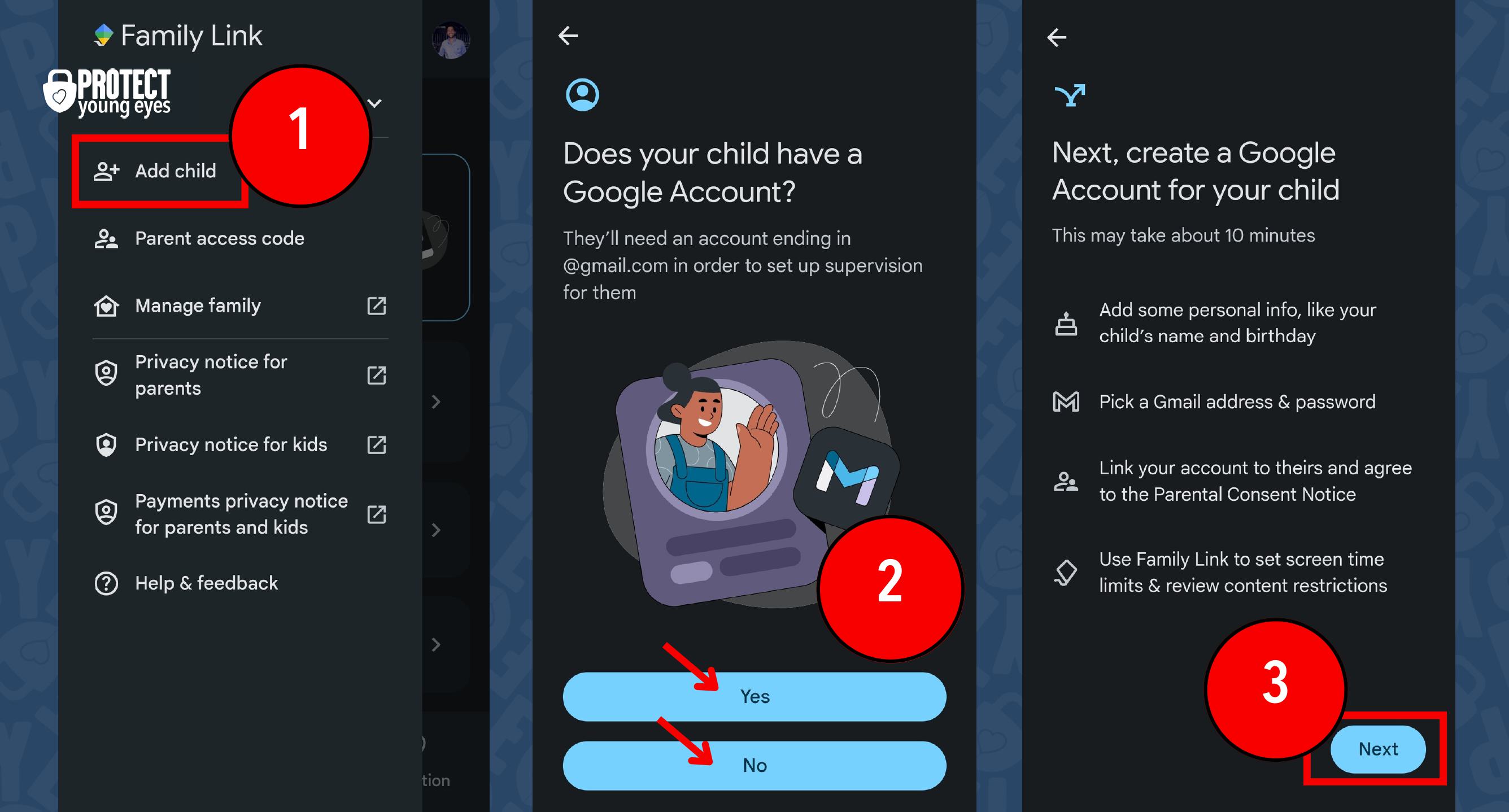
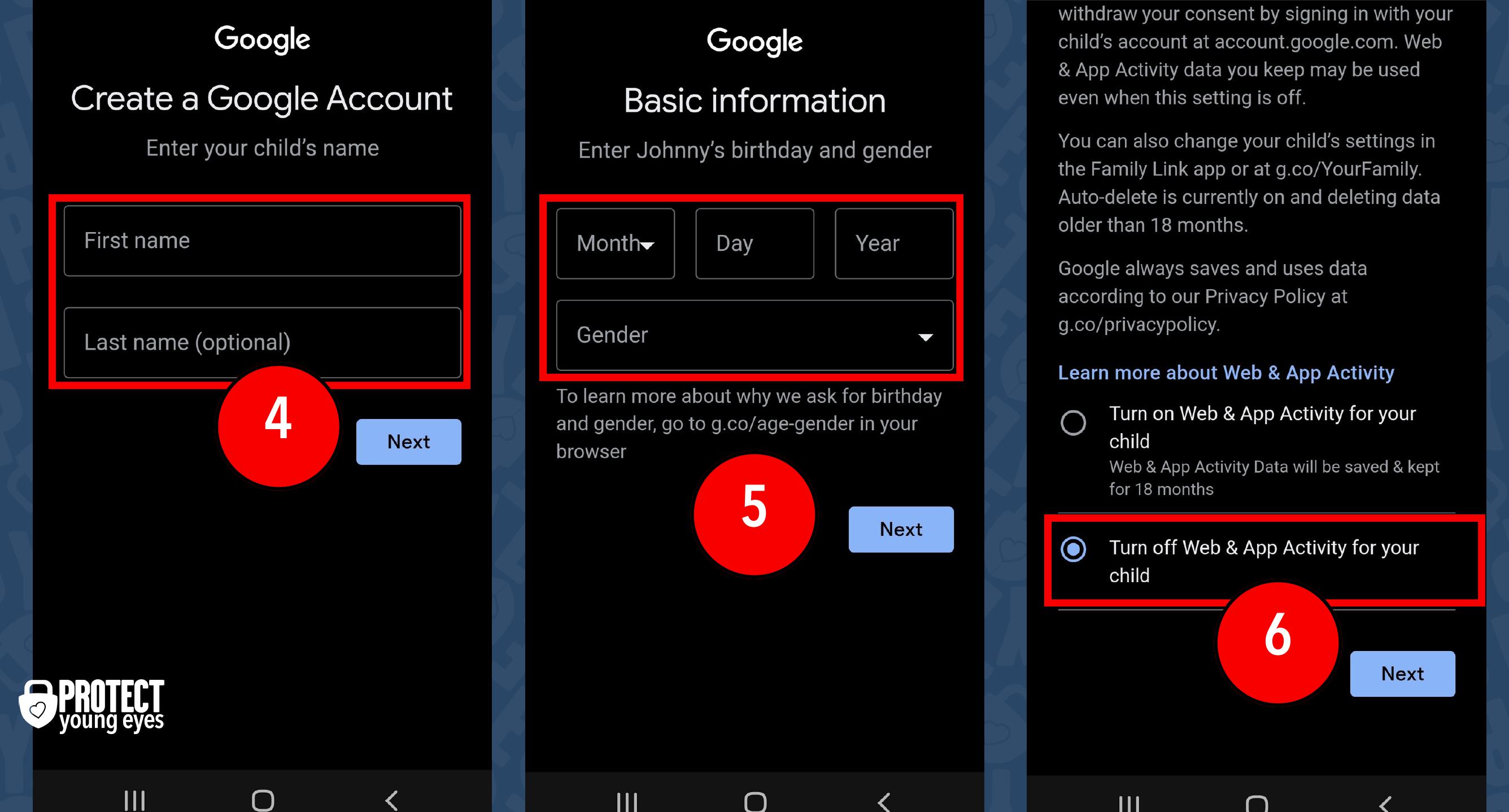
Now that your child is in Family Link, you can manage their account.
To make YouTube safer, start by selecting the "Controls" tab. Then (1) Select YouTube, then (2) choose either “YouTube” or “YouTube Kids” depending on which platform you want your child to use.
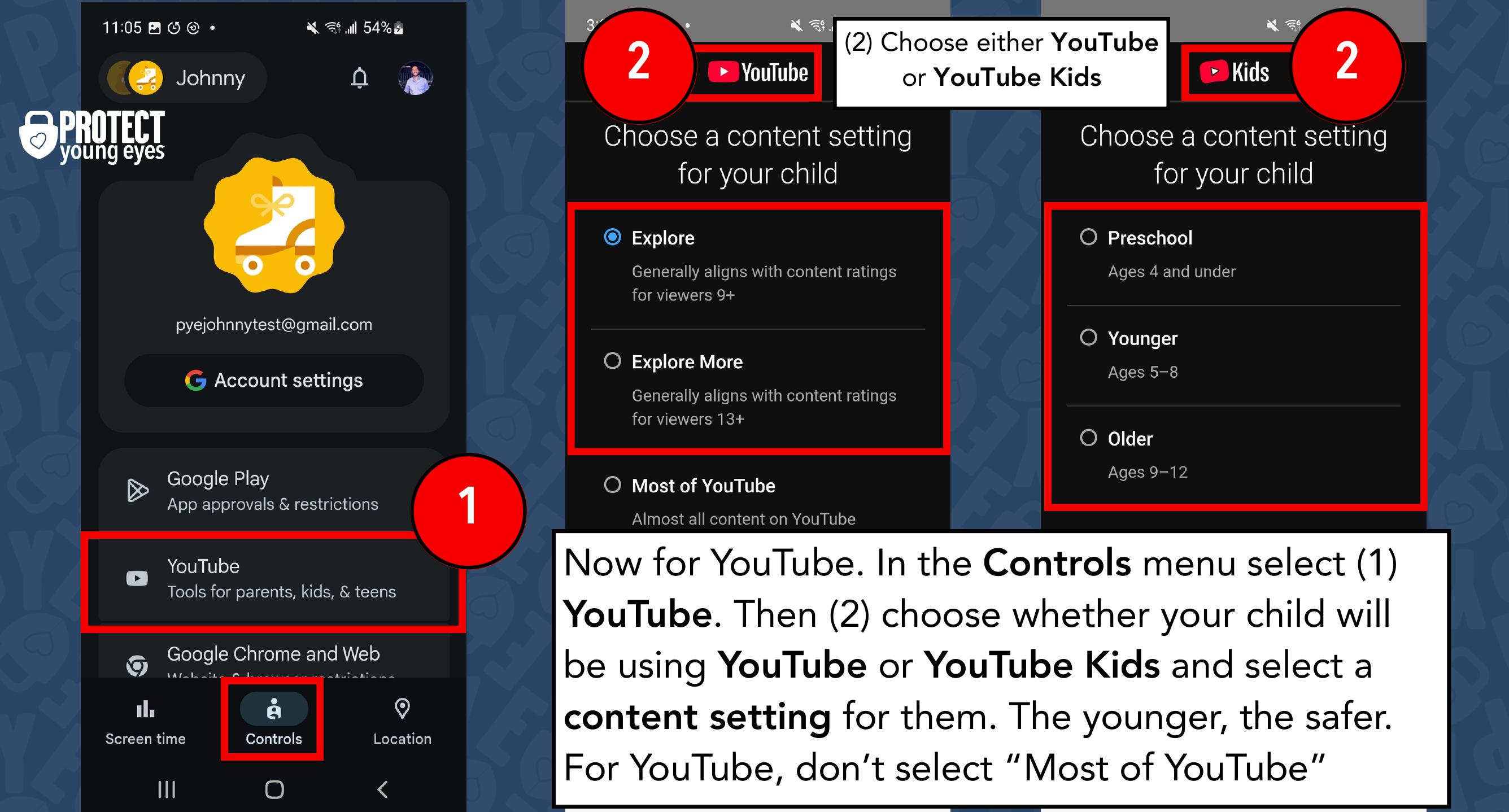
If you choose YouTube, you can now manage more settings. If you choose YouTube Kids, you can now manage one more setting. See the instructions below:
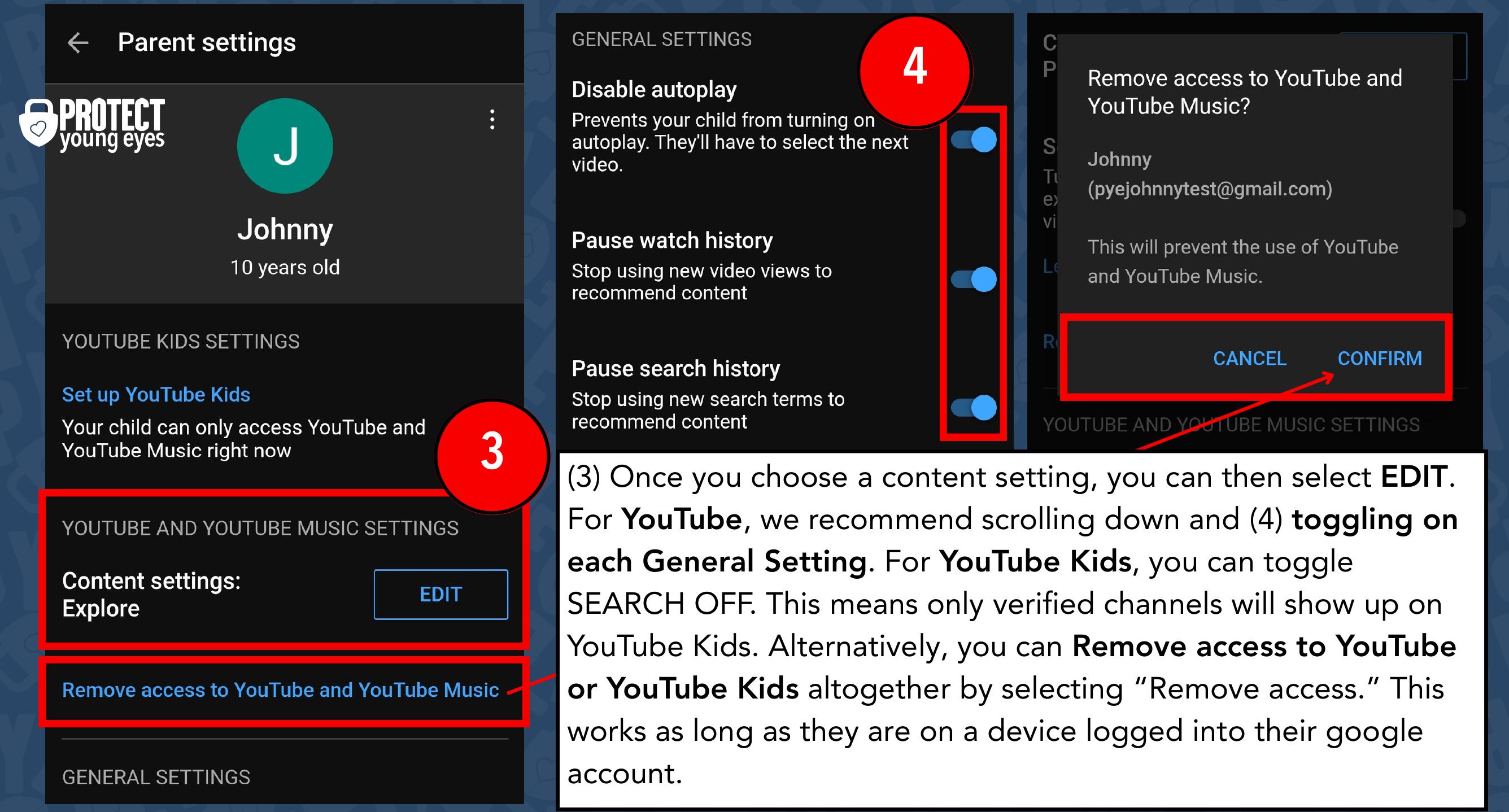
These controls should eliminate most of the problems you would face on YouTube. This works across all internet browsers and both the YouTube and YouTube Kids apps, as long as your child is signed into their Gmail account with these settings enabled. However, even Google points out that your kid might still see content you wouldn’t want them to.
Mostly, but if it has YouTube in the title, then we only trust it if we’re watching it with them or have limited the videos to a controlled set that we have selected if we aren’t able to watch them closely. It’s Google! And, thus far, their products have a less-than-stellar track record.
We Recommend Jellies!
A non-YouTube Kids option with even stronger controls (every video is approved by a real person) is Jellies, which was created by a smart dad who was tired of YouTube’s shenanigans. It’s 30 days free and then $4.99/month. We don’t have any affiliation with them. We just like what they’re doing.
Two actions you can take!


Read about our team’s commitment to provide everyone on our global platform with the technology that can help them move ahead.
Honored to join Bark and other amazing advocates in this film.
Joined a coalition of global experts to present on social media's harms.
We shared our research and experience with the US Senate Judiciary Committee.